

Currently Empty: ₹0.00



Communication and Collaboration
Microsoft Purview – Data Loss Prevention 1
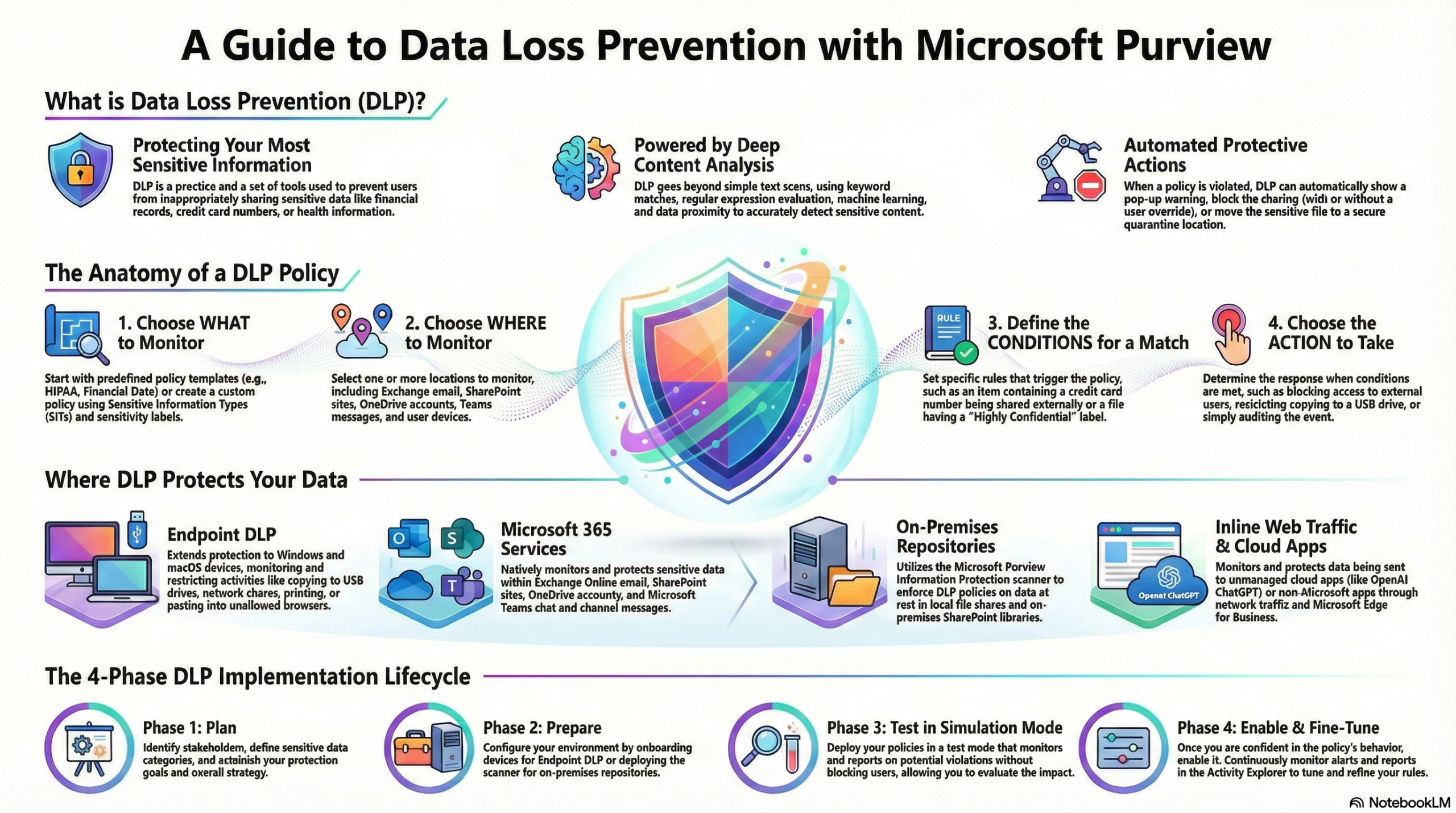
This post shares an overview on Microsoft Purview – Data Loss Prevention (DLP). Second part of the post discuss specifically on DLP on Microsoft Copilot.
What is Data Loss Prevention (DLP)?
- Purpose: DLP protects sensitive information (financial data, health records, PII, etc.) and reduces the risk of oversharing by preventing users from inappropriately sharing data.
- Detection: It uses deep content analysis rather than simple text scanning. Detection methods include keyword matching, regular expressions, internal function validation, secondary data proximity matches, and machine learning algorithms.
Coverage and Locations
- Enterprise Applications & Devices: Policies can target Microsoft 365 services (Exchange, SharePoint, OneDrive, Teams), Office applications, endpoints (Windows 10/11, macOS), on-premises repositories, Power BI, and Microsoft 365 Copilot.
- Inline Web Traffic: DLP monitors data transmitted via the network or Edge for Business to “unmanaged cloud apps.” This includes specific support for AI tools like OpenAI ChatGPT, Google Gemini, DeepSeek, and Microsoft Copilot, as well as over 34,000 other cloud apps.
The DLP Lifecycle
- Plan: Involves technology planning (locations and data types), business process planning (defining allowed vs. prohibited behaviors), and organizational culture planning (training users and using policy tips).
- Prepare: Identifying prerequisites for different locations (e.g., scanners for on-prem files vs. simple policy config for Exchange).
- Deploy:
- Simulation Mode: Policies should be deployed in simulation mode first to evaluate impact without enforcing actions. Note that the setting “Stop processing more rules” does not function in simulation mode.
- Turn On: Once tuned, policies can be enabled. They generally take about one hour to take effect.
Policy Configuration
- Administrative Scoping: Policies can be scoped to specific Administrative Units, limiting management to specific groups of users or sites.
- Conditions: Rules are triggered by matches to sensitive info types, sensitivity labels, or sharing context (internal vs. external).
- Actions: Depending on the location, actions include blocking access, showing policy tips, allowing user overrides with justification, quarantining files (on-prem), or hiding sensitive text (Teams).
Monitoring and Investigation
- Scanning Behavior:
- SharePoint/OneDrive: Scans both new and existing items.
- Exchange: Scans only new messages; it does not scan existing emails in mailboxes.
- Alert Retention: Alerts remain in the Microsoft Defender portal for six months but are only visible in the DLP alerts dashboard for 30 days.
- Activity Explorer: Used to review rule matches. You can view the Contextual summary (text surrounding the matched content) by looking at the DLPRuleMatch event, which is usually paired with a user activity event like “CopyToClipboard”.
- Reporting: While many reports are in the Security & Compliance PowerShell, detailed email reports (like
Get-MailDetailDlpPolicyReport) require connecting to Exchange PowerShell.