

Currently Empty: ₹0.00



Communication and Collaboration
Data Loss Prevention for Microsoft Copilot
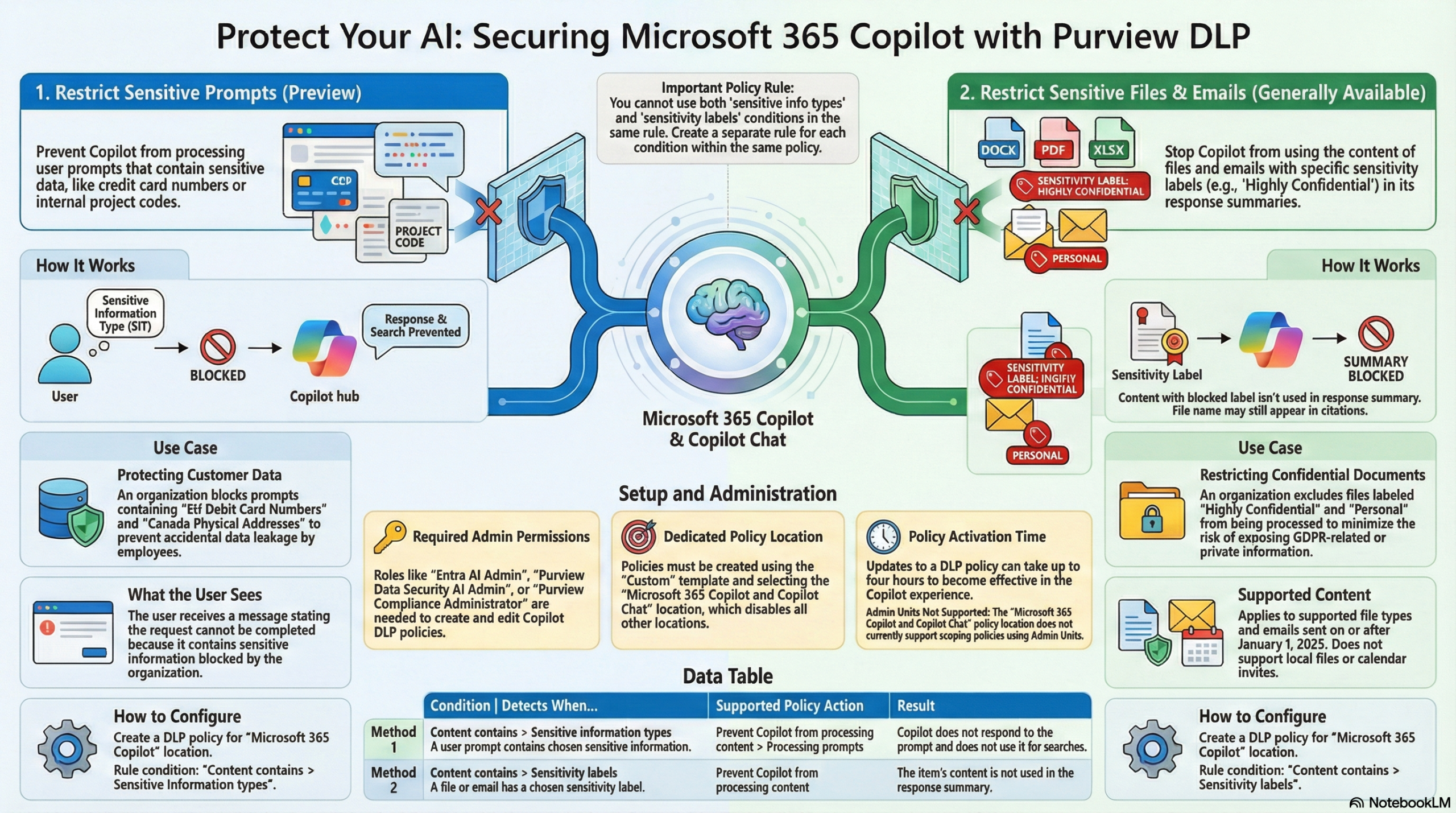
This post explains how Microsoft Purview Data Loss Prevention (DLP) protects interactions with Microsoft 365 Copilot.
Overview
Below details how organizations can apply DLP policies to Microsoft 365 Copilot and Copilot Chat to mitigate data leakage and oversharing risks. This integration focuses on two primary protective mechanisms:
- Restricting Sensitive Prompts (Preview): This prevents Copilot from processing or responding to user prompts that contain sensitive information types (SITs), such as credit card numbers or social security numbers. If a user enters restricted data, Copilot is blocked from using that data for internal or external web searches and will not generate a response,.
- Restricting Sensitive Content Usage (Generally Available): This prevents Copilot from using the content of files or emails labeled with specific Sensitivity Labels (e.g., “Highly Confidential”) for response summarization. While the item might still appear in citations, its actual content is excluded from the AI’s processing.
Key Configuration Details
- Policy Structure: To enable these protections, administrators must use the specific “Microsoft 365 Copilot and Copilot Chat” location within a Custom policy template. When this location is selected, all other locations (like Exchange or Teams) are disabled for that specific policy.
- Rule Separation: Administrators cannot combine conditions for sensitive info types and sensitivity labels in the same rule. They must be configured as separate rules within the same policy.
- Permissions: Managing these policies requires specific roles, such as the Entra AI Admin, Purview Data Security AI Admin, or Purview Compliance Administrator.
User Experience
- Blocked Prompts: If a user includes blocked sensitive data in a prompt, they receive a message stating the request cannot be completed due to organizational policy.
- Blocked Files: If a file is open in an app like Word and carries a restricted sensitivity label, Copilot skills within that app are disabled for that specific file.
To understanding how Data Loss Prevention (DLP) and Sensitivity Labels integrate with Microsoft 365 Copilot and Generative AI.
1. The Golden Rule: View vs. Extract
When configuring permissions for Sensitivity Labels, simply granting “View” access is not enough for Copilot to function effectively.
Make a note, Copilot consists of three main parts: the Orchestrator, the Large Language Model (LLM), and the Graph (where data is stored).
Requirement: For Copilot to use a document to generate a response, the user’s label permission must include “Extract” rights (often found under “Custom” permissions as “Copy and Extract”). If a user has “View” but not “Extract,” Copilot cannot pull that data into a response.
2. Label Inheritance
Copilot is designed to respect the security of the documents it references.
How it works: If Copilot references a document that has a Sensitivity Label applied, the resulting content generated by Copilot will inherit that label.
Priority Matters: Label priority dictates behavior. If Copilot uses multiple sources, the label with the highest priority (most sensitive) will be applied to the output. Lower priority labels are replaced by higher priority ones,.
3. Restricting Copilot Responses (DLP)
You can prevent Copilot from answering questions if the source data is too sensitive (e.g., “Highly Confidential”).
- The Configuration: You can create a Custom DLP Policy under “Data stored and connected sources”,.
- The Rule: Configure a rule stating: If content contains [Specific Sensitivity Label], then restrict the processing of content.
- The Result: If a user prompts Copilot regarding a document with that label, Copilot will block the processing and provide no response, preventing the data from being used in the generation,.
4. Browser & Generative AI Protection
Beyond Copilot, you must protect data from being pasted into public AI tools (like ChatGPT, Gemini, or DeepSeek).
Service Domain Groups: You can configure Endpoint DLP to block or allow specific groups of domains. For example, you can block all “Generative AI” websites but allow a specific enterprise version if needed,.
Browser Restrictions: DLP rules can enforce blocks on “unallowed browsers” to ensure users don’t bypass protections. For supported browsers (Edge, or Chrome/Firefox with extensions), you can block users from pasting sensitive data into web chats,.
5. Simulation Mode
When creating auto-labeling or DLP policies, you can run them in Simulation Mode.
Why use it? It allows you to see what would happen (auditing matches) without actually blocking users or disrupting work.
The “Brave” Option: There is a checkbox to “Automatically turn on policy” after a set number of days (e.g., 7 days). The speaker calls this the “brave little box of automation,” implying you should only use it if you are very confident in your rule configuration.
6. Auditing & Visibility
To investigate what users are doing with AI, use the Activity Explorer.
What it shows: It displays a timeline of sensitive activities, such as Copilot interactions, file usage, and DLP rule matches.
Crucial Role: To see the actual text of the prompt and response involved in an incident, an administrator needs the specific role of “Data Security AI Content Viewer.” Without this, you can see that an event happened, but not the specific content of the interaction.
Analogy: Think of Copilot as a research assistant.
- Permissions (Extract): If you show the assistant a book but forbid them from taking notes (no “Extract” permission), they cannot write a report for you.
- Inheritance: If the assistant reads a “Top Secret” file to write a report, the report must also be stamped “Top Secret”.
- DLP: You can give the assistant a standing order: “If you see a Red Sticker (Highly Confidential Label), pretend you didn’t see it and do not answer questions about it”.
Think of these DLP policies as a “filter” for the AI assistant. One filter checks the input (ensuring users don’t whisper secrets to the AI), and the other filter checks the source material (ensuring the AI isn’t allowed to read or summarize your most confidential locked diaries).