

Currently Empty: ₹0.00



Communication and Collaboration
Password Hash Sync – How it works
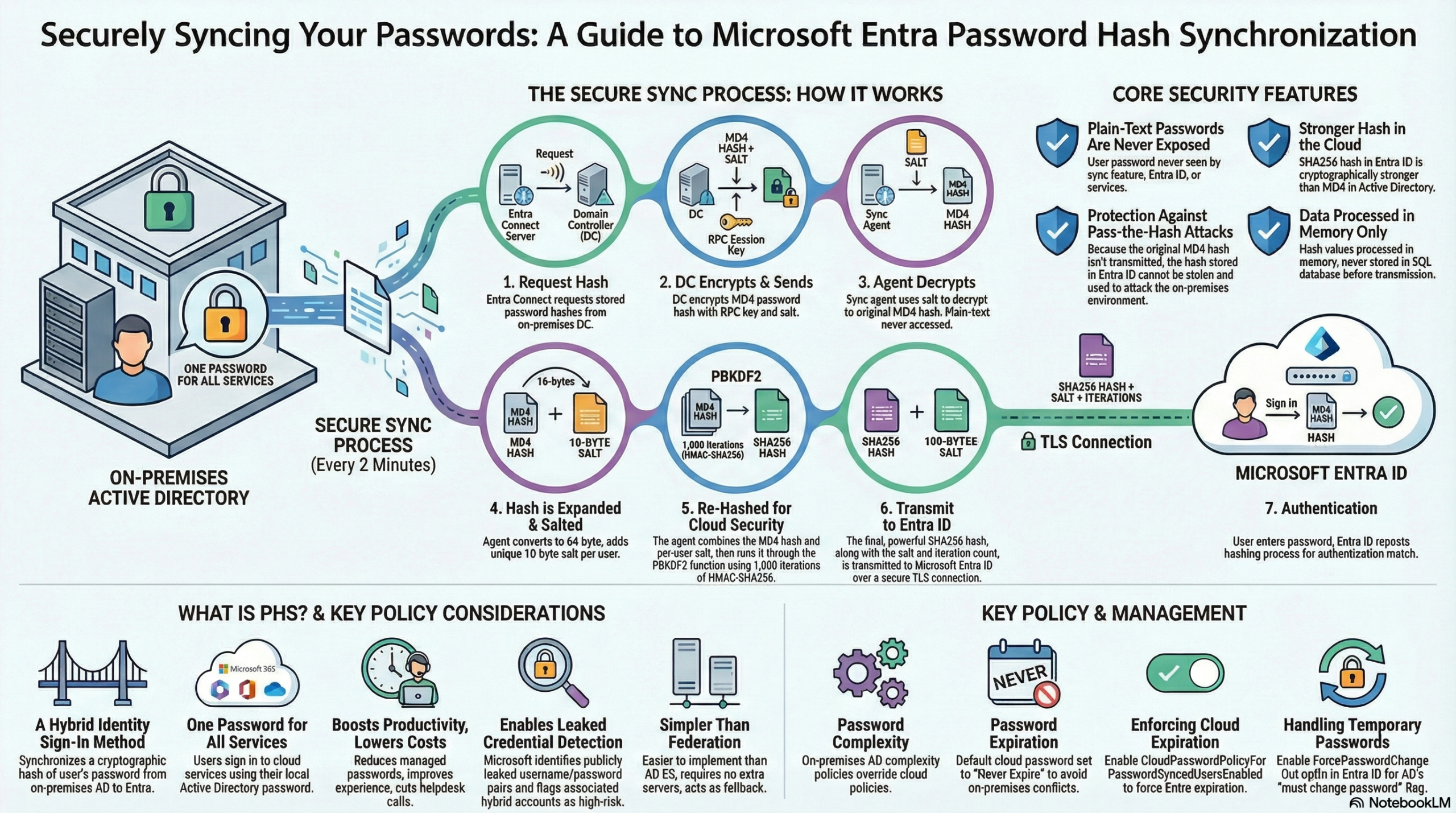
This post is on Password Hash Synchronization (PHS) and how it works.
PHS synchronizes user passwords from an on-premises Active Directory (AD) instance to a cloud-based Microsoft Entra instance. It extracts the password hash (not the plain text) from AD, applies extra security processing, and synchronizes it to the cloud. The process runs every 2 minutes. This frequency is fixed and cannot be modified.
Scope:
- Passwords are synchronized on a per-user basis in chronological order.
- You cannot select a specific subset of users for PHS; it applies to all in-scope users. However, you can disable PHS for specific Connectors if you have multiple.
- PHS is not supported for the
iNetOrgPersonobject type.
Technical Architecture (How It Works)
The sync engine mimics a Domain Controller to retrieve data securely.
- Password Change/Set: A user changes their password in the on-premises Active Directory.
- Hash Creation: AD stores the password as an MD4 hash (not plaintext).
- Synchronization Trigger: The Azure AD Connect server, running on your network, detects this change (typically within minutes).
- Secure Hash Transfer: The server retrieves the password hash from AD and performs additional hashing (often to MD5 and then back to MD4 with salt), ensuring the original password isn’t exposed.
- Cloud Storage: This secure, salted hash is synchronized to Microsoft Entra ID.
- Cloud Sign-in: When you sign into a cloud service (like Microsoft 365), Entra ID hashes your entered password and compares it to the synchronized hash.
- Authentication: If the hashes match, you’re authenticated; otherwise, access is denied, all done in the cloud without needing to contact the on-premises AD.
Core Concept on how it works
- The agent requests stored hashes (
unicodePwd) from the Domain Controller (DC) using the standard MS-DRSR replication protocol. - The DC encrypts the MD4 hash using a key derived from the RPC session key and a salt.
- The agent decrypts this using MD5. Note: MD5 is used solely for compatibility with the DC’s replication protocol during this local step; the clear text password is never accessed.
- Expansion: The 16-byte binary MD4 hash is expanded to 64 bytes (converted to hex string, then back to binary via UTF-16).
- Salting: A 10-byte per-user salt is added.
- PBKDF2: The combined data is input into the PBKDF2 function using 1,000 iterations of HMAC-SHA256.
Transmission: The resulting 32-byte hash (plus salt and iteration count) is sent to Microsoft Entra ID over TLS.
Security Considerations
The original MD4 hash is never sent to the cloud. Only the SHA256 hash of the MD4 hash is transmitted.
Anti-Attack: Because the cloud stores a hash of the hash, the data cannot be brought back to on-prem AD to execute a “pass-the-hash” attack.
Storage: Password hash values are never stored in SQL; they are processed in memory only.
Password Policy Behavior
On-Premises Wins: Policies in the local AD override cloud policies. Any password valid in AD is accepted by Entra ID.
Expiration
Cloud passwords are set to “Never Expire.” Users can log in to the cloud with an expired on-prem password.
Enforcing Cloud Expiration:
- To make users respect cloud expiration, enable the feature CloudPasswordPolicyForPasswordSyncedUsersEnabled via PowerShell.
By default, the sync engine sets the PasswordPolicies attribute to DisablePasswordExpiration. Enabling this feature stops that behavior, but the flag is only removed from a user upon their next successful password sync.
Account Expiration: The AD attribute accountExpires is not synchronized. Expired AD accounts remain active in the cloud unless manually disabled (e.g., via script).
Temporary Passwords (“Change on Next Logon”)
The Issue: If a user has “User must change password at next logon” set in AD, they may receive an “Account or password incorrect” error in the cloud.
The Fix: Enable the ForcePasswordChangeOnLogOn feature via PowerShell.
- When enabled, Entra ID forces a password change upon the first cloud sign-in if the AD flag is detected.
- Requirement: PHS must be running to sync this flag.
Special Scenarios
For Users with “Smart Card Required for Interactive Logon” (SCRIL) have randomized AD passwords. PHS syncs this randomized password. As of version 2.4.18.0, if SCRIL is re-enabled (e.g., after a temp password was used), the new randomized password syncs immediately, rendering the old temp password useless in the cloud.
Microsoft Entra Domain Services Provides legacy auth (Kerberos/NTLM) for cloud apps. To support legacy auth through Microsoft Entra Domain Services, it requires syncing supplementalCredentials (Kerberos) and unicodePwd (NTLM).
FIPS Compliance, If the sync server enforces FIPS, MD5 is disabled. Because the agent needs MD5 to talk to the DC (replication protocol), admins must configure miiserver.exe.config to disable FIPS enforcement for the runtime: <enforceFIPSPolicy enabled="false" />.
Management
If an admin resets a password in the cloud, it temporarily overrides the synced password. The next on-premises password change will overwrite the cloud change.
To troubeshoot the Password Has Sync, Errors are logged in the event viewer. The engine automatically retries failed sync attempts.